How to control your business display from your phone
Change the menu, offer or video on your shop TV from your phone, from anywhere. What you need, how to set it up and what to watch out for.
Why owners want to control the display from their phone
Most business owners don’t sit at a desk. You’re at the counter, at a supplier, or driving between two outlets. If changing what’s on your shop TV means going back to a laptop, or copying files to a pen drive, it won’t happen as often as it should.
Controlling your business display from your phone fixes that. You notice a price change, you update it, and the screen shows it a few seconds later.
What you need
A TV or display at your business, an internet connection at the outlet (Wi-Fi or cable), and digital signage software that works in a phone browser. You don’t need a computer at the outlet, and in most cases you don’t need a new TV.
If the TV runs Android TV, Google TV or Fire TV, the player installs directly. Older TVs with only HDMI ports need a small Android TV box.
Step 1: Connect the TV to your account once
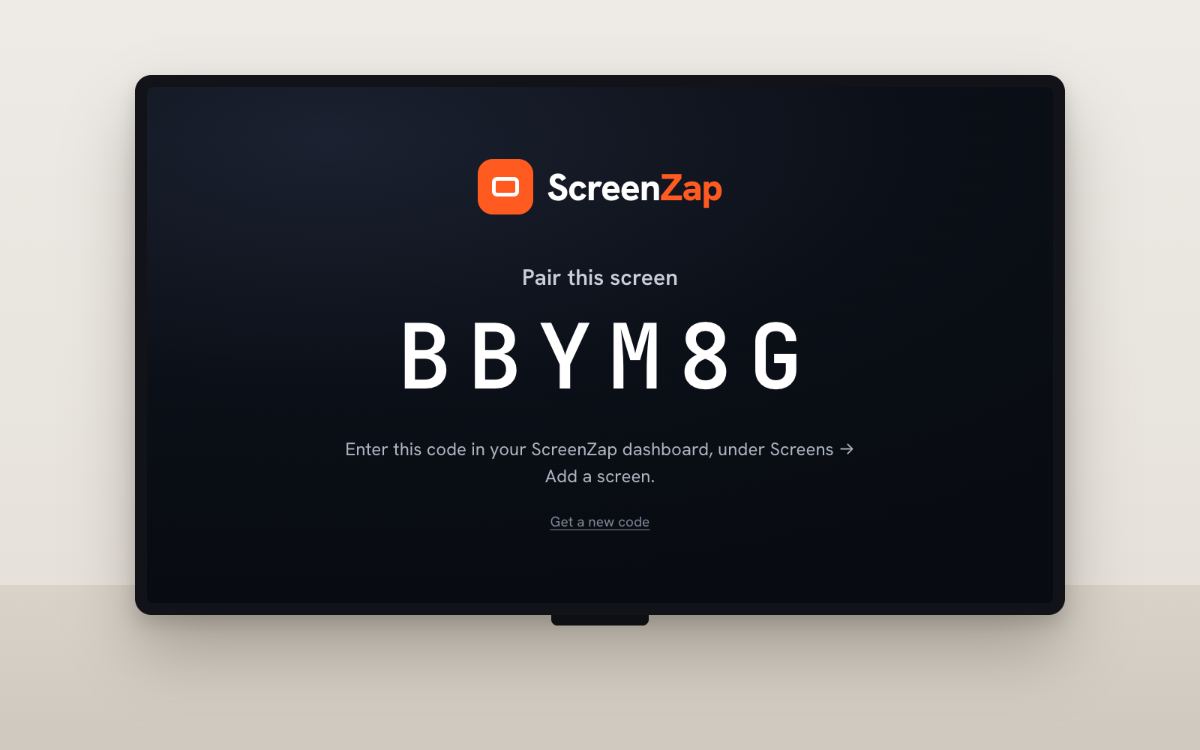
Install the ScreenZap player on the TV, or open app.screenzap.io/pair-screen in its browser. The screen shows a six-digit code. On your phone, sign in, tap Add screen and enter the code.
That is the only time you need to stand in front of the TV.
Read next: How to turn a normal TV into a digital signage screen
Step 2: Upload from your phone gallery
Take a photo of the new offer, use the poster your designer sent on WhatsApp, or pick a video from your gallery. Upload it to the media library and add it to a playlist.
Set how long each item stays on screen. Eight to ten seconds works well for images.
Step 3: Publish and check
Publish the playlist to the screen and the TV starts playing it within seconds. The Screens list shows whether each screen is online and what it is playing, so you don’t need to call the outlet to check.
Running more than one screen or outlet
This is where phone control pays off. Group screens by outlet or city and publish to the whole group at once. Schedule breakfast and lunch menus to switch on their own, and give every offer an end date so it comes down on time.
Aryan Jasoliya at Taranovas puts it simply: “I can update any promotion across all our outlets directly from my phone.”
Read next: How to update multiple TV screens at once
A few things to watch
Turn off the TV’s sleep timer and screensaver so it doesn’t go blank in the middle of the day. Give staff their own login with limited rights instead of sharing yours. If the internet at the outlet is patchy, choose software that keeps playing downloaded content when the connection drops.
Frequently asked questions
Can I control my shop TV from my phone without installing an app?
Yes. ScreenZap runs in your phone’s browser, so there is nothing to install on the phone. You install the player on the TV once.
Will it work with the TV I already have?
If the TV runs Android TV, Google TV or Fire TV, yes. Older TVs work with a low-cost Android TV box connected over HDMI.
Is there a free plan?
ScreenZap is free for one location with up to 2 screens.


