How to update multiple TV screens at once, without visiting every outlet
Pair every screen to one account, group them the way you run the business and publish once. A step-by-step guide for multi-outlet businesses.

The problem with updating screens one by one
With one screen, a pen drive is fine. With ten screens across four outlets, one menu change becomes a day of travel, and some outlets still end up showing the old price.
Before ScreenZap, Oxy Burger updated the screens at all 14 outlets with pen drives. Priyank Vekariya says publishing once from head office now saves the team around two days every month.
Step 1: Pair every screen to one account
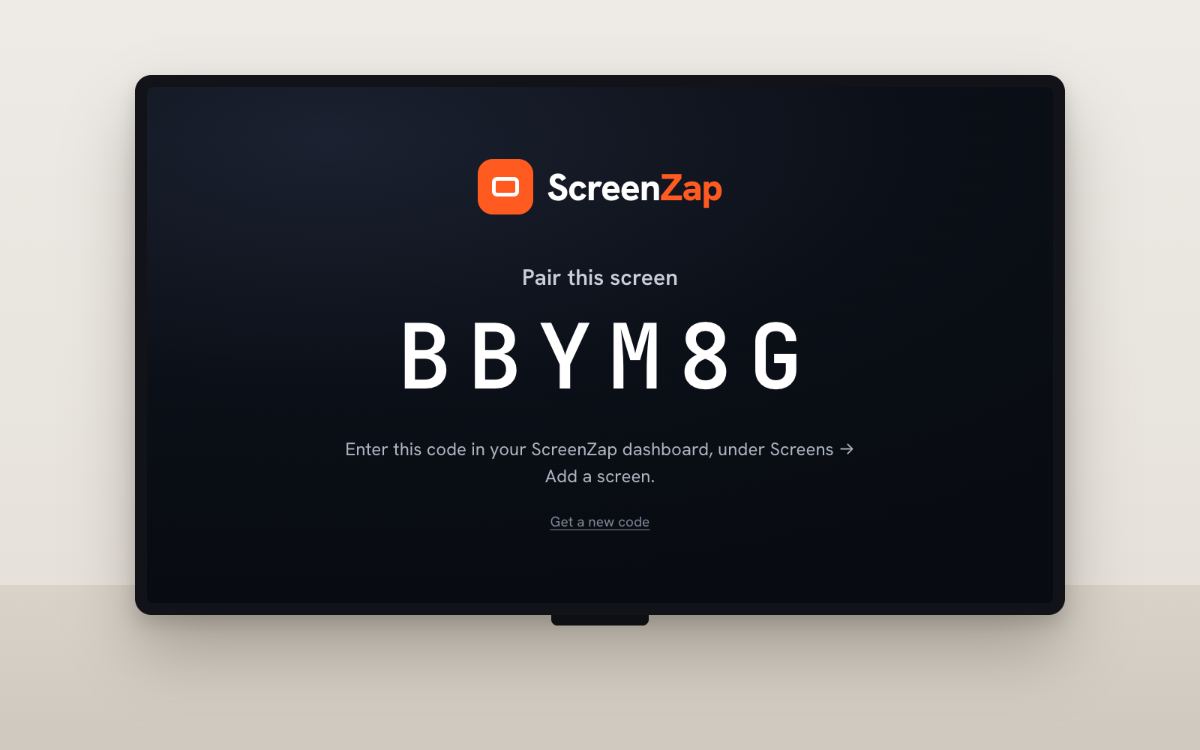
Install the player on each TV and enter its six-digit pairing code in your account. Do this once per screen. After that, every screen takes its content from the same dashboard.
Step 2: Group screens the way you run the business
Name each screen by city, outlet and position, such as “Surat – Vesu – Counter”. Then create groups for how you publish: all outlets, one city, all counter screens. A screen can sit in several groups.
Read next: Run hundreds of screens from one dashboard
Step 3: Publish to a group, not a screen
Build the playlist once and publish it to the group. Every screen in that group updates within seconds, whether it is two outlets or two hundred.
Step 4: Schedule instead of reminding staff
Set dayparts, start dates and end dates when you publish. Breakfast switches to lunch on its own, and an offer that ends on Sunday comes down on Sunday in every outlet.
Step 5: Check every screen from one list
The Screens list shows which screens are online and what each is playing. If one outlet is offline, you know before the customer notices.
Read next: How to check your shop screens are working, without calling the outlet
Show different content where you need it
Same content everywhere is the default, but you can still run city prices or an outlet-only offer. Create a group for those outlets and publish their version to that group only.
Frequently asked questions
Can I show the same video on multiple TVs at the same time?
Yes. Publish one playlist to a screen group and every TV in the group plays it.
Can different outlets show different content?
Yes. Use separate screen groups for outlets that need their own prices or offers.
What happens if one outlet’s internet goes down?
On Professional, screens keep playing the content they last downloaded and update when the connection returns.